Introduction
If you've been running Proxmox VE for a while, you've probably already got vzdump backups landing on local disk or an NFS share. That works, right up until your storage runs low or you realize every single backup is a brand-new full copy of the VM's disks, even if only a few files changed since yesterday.
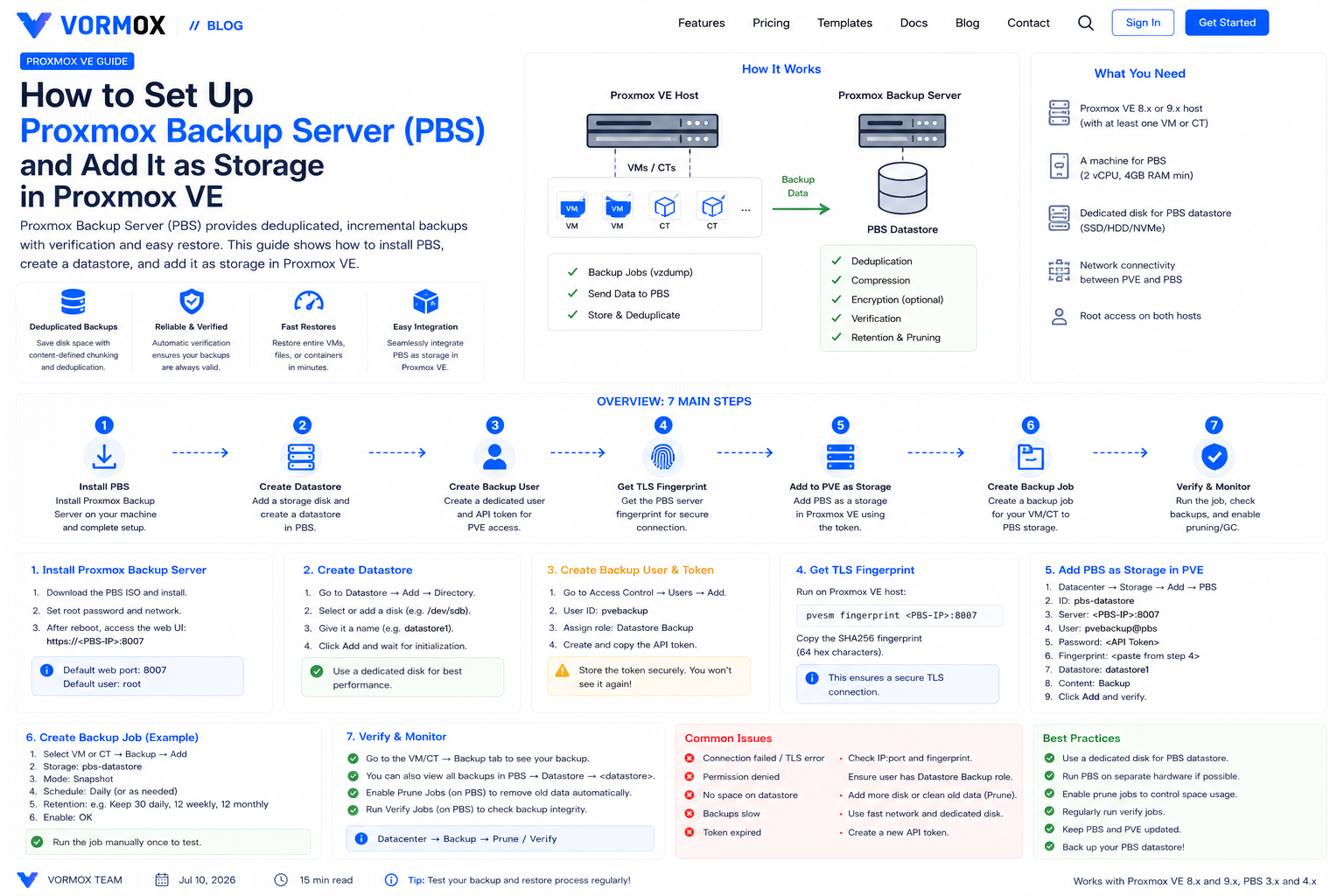
Proxmox Backup Server (PBS) is Proxmox's answer to that problem. It's a separate, purpose-built application — you can run it as its own VM, on dedicated hardware, or even nested inside the same Proxmox VE host if you're just testing it out — that plugs into Proxmox VE as a storage backend and does two things vzdump alone can't: block-level deduplication and fast incremental-feeling backups, even though every restore point is still a full, independently restorable backup.
This guide covers installing PBS, setting up a datastore, connecting it to Proxmox VE, and running your first deduplicated backup and restore. We're using Proxmox VE 9.x and Proxmox Backup Server 4.x for the commands below, but the process is essentially unchanged from PVE 8.x and PBS 3.x.
What You Will Learn
- What Proxmox Backup Server actually does differently from plain vzdump backups
- How to install PBS and create your first datastore
- How to create a dedicated backup user and API token instead of using the PBS root account
- How to find your PBS server's TLS fingerprint and add PBS as storage in Proxmox VE
- How to run a backup job against PBS and see deduplication in action
- How garbage collection, verification, and pruning keep a PBS datastore healthy
- The errors you're most likely to hit connecting PVE to PBS, and how to fix them
What Is Proxmox Backup Server?
Proxmox Backup Server is a standalone product with its own ISO, its own web interface, and its own release cycle — it isn't a feature you enable inside Proxmox VE. Once installed, it exposes a datastore that Proxmox VE talks to over its own client-server protocol, not NFS or CIFS.
The core trick is content-defined chunking. Instead of storing each backup as one big archive file the way vzdump does with local or NFS storage, PBS splits every virtual disk into variable-sized chunks based on their content, then stores each chunk once and reuses it across every backup snapshot that contains the same data. Boot a hundred nearly-identical Ubuntu VMs and back them all up to the same PBS datastore, and the base OS chunks get stored essentially once. Back the same VM up every night for a month, and only the chunks that actually changed get written again.
From the Proxmox VE side, this is close to invisible — you still click Backup now or let a scheduled job run, and you still see a list of restore points on the VM's Backup tab. The difference shows up in how little space and time each backup after the first one takes, and in a couple of extra features PBS-backed storage unlocks: file-level restore from inside a VM backup without restoring the whole disk, backup verification jobs that check chunk integrity, and encrypted backups if you want the data unreadable even to whoever has physical access to the PBS server.
Why Would You Use It?
The honest trigger for most people is disk space. If you're backing up more than a handful of VMs to plain directory or NFS storage, you'll notice the backup folder growing by the full size of every VM's used disk space, every single time a job runs. PBS's deduplication routinely cuts that down by 60-90% for typical homelab workloads, since most VMs share a lot of boot-partition and package data with each other and with their own past backups.
The second reason is speed. A vzdump backup to NFS has to write every byte of the VM's disk across the network on every run. A PBS-backed backup only has to transfer chunks the PBS server doesn't already have — which, after the first backup, is often a small fraction of the VM's total size. Nightly backup windows that used to take twenty minutes can drop to under a minute once the initial full backup is done.
There's also a resilience angle. Running PBS on separate hardware from your Proxmox VE host — even a low-power mini PC with a couple of drives — means a dead PVE node doesn't take your backups down with it. That's the "two different types of media" half of the 3-2-1 backup rule in one step.
Prerequisites
- A machine (physical, or a VM on different hardware than the guests you're protecting) to install Proxmox Backup Server on — 2 CPU cores, 4 GB RAM, and a dedicated disk for the datastore is enough for a homelab
- A working Proxmox VE 8.x or 9.x install with at least one VM or LXC container to back up
- Network connectivity between the PVE host and the PBS host, ideally on the same LAN
- Root access on both the Proxmox VE and Proxmox Backup Server hosts
- A rough idea of how much backup data you'll be storing, to size the PBS datastore's disk
You don't need a subscription for either product to follow this guide — both PVE and PBS are fully usable on the no-subscription repositories, you'll just see a reminder banner and won't get access to the enterprise repo.
Step-by-Step Tutorial
Step 1: Install Proxmox Backup Server
Download the PBS ISO from the official Proxmox downloads page and write it to a USB drive, same as you would for a Proxmox VE install. Boot the target machine from it and walk through the installer — it asks for a target disk, timezone, and root password, and mirrors the Proxmox VE installer closely enough that if you've installed PVE before, nothing here will surprise you.
Pick the disk carefully: whatever you select becomes the OS disk. You'll add a separate disk (or partition) as the actual datastore in a later step, so a small, fast disk for the OS and a larger disk for backup data is a reasonable split if you have both available.
After the install finishes and the box reboots, log in to the web interface at https://<pbs-ip>:8007 with the root password you set. You'll hit the same "no valid subscription" notice PVE shows — click through it, it doesn't block anything.
Step 2: Create a datastore
A datastore is where PBS actually stores your deduplicated chunks. In the PBS web interface, go to Datastore → Add Datastore.
- Give it a Name — something like
mainorpve-backupsis fine. - Set the Backing Path to a directory on the disk you want to use, for example
/mnt/datastore/main. If the disk isn't mounted yet, mount it first — PBS won't format a raw disk for you from this dialog. - Optionally set a GC Schedule (garbage collection) and Prune Schedule now, or leave them and configure them later once you know your retention needs.
- Click Add.
From the command line, the equivalent is:
proxmox-backup-manager datastore create main /mnt/datastore/mainYou can add more than one datastore on the same PBS instance later — for example, a fast SSD datastore for VMs you restore often, and a bigger spinning-disk datastore for long-term retention.
Step 3: Create a dedicated backup user and API token
Don't hand Proxmox VE your PBS root credentials. Create a scoped-down user instead, so a compromised PVE host can't do anything to PBS beyond writing and reading its own backups.
proxmox-backup-manager user create pve-backup@pbs --password
proxmox-backup-manager acl update /datastore/main DatastoreBackup --auth-id pve-backup@pbs
The DatastoreBackup role covers exactly what a client needs to push and pull backups on that datastore — it can't delete other users' data or touch datastore configuration. If you want Proxmox VE to also be able to prune old backups automatically as part of a job, use DatastoreBackup together with DatastorePowerUser, or grant DatastoreAdmin if you're comfortable with the broader scope on a single-tenant homelab setup.
An API token is often more convenient than a plain user password, especially if you'll be adding the same PBS datastore to more than one Proxmox VE cluster:
proxmox-backup-manager user generate-token pve-backup@pbs pve1
proxmox-backup-manager acl update /datastore/main DatastoreBackup --auth-id 'pve-backup@pbs!pve1'
Save the token value shown after that command — PBS only displays it once.
Step 4: Get the PBS server's TLS fingerprint
Proxmox VE needs to trust the PBS server's certificate before it'll connect. Rather than dealing with a full CA setup for a homelab, Proxmox uses a fingerprint pin. Grab it on the PBS host:
proxmox-backup-manager cert info | grep FingerprintYou can also find this in the PBS web interface under Dashboard → Certificates. Copy the fingerprint string — it looks like a long run of colon-separated hex pairs, e.g. AB:CD:12:34:... — you'll need it in the next step.
Step 5: Add PBS as storage in Proxmox VE
Back on the Proxmox VE host, go to Datacenter → Storage → Add → Proxmox Backup Server.
- ID: a name for this storage as it'll appear in PVE, e.g.
pbs-main. - Server: the PBS host's IP address or DNS name.
- Username:
pve-backup@pbs(or the token form,pve-backup@pbs!pve1, if you're using a token). - Password: the user's password, or the token secret if using a token.
- Datastore:
main, matching what you created in Step 2. - Fingerprint: paste the value from Step 4.
Click Add. Proxmox VE will test the connection immediately, and you should see the new storage appear in the tree with a green status.
The same thing from the command line, useful if you're scripting a new node's setup:
pvesm add pbs pbs-main --server 192.168.1.50 --datastore main \
  --username 'pve-backup@pbs' --password --fingerprint AB:CD:12:34:...
--password with no value makes it prompt interactively rather than putting the password in your shell history.
Step 6: Run a backup and watch deduplication happen
Pick a VM, open its Backup tab, and click Backup now just like you would for any other storage — select pbs-main as the target. The first backup will take about as long as a normal full backup, since there's nothing to deduplicate against yet.
Run the same backup again the next day, or right after making a small change in the guest. Watch the task log: the transferred size will be noticeably smaller than the VM's actual disk usage, and the job will usually finish much faster. In the PBS web interface, click into the datastore's Content tab and you'll see multiple restore points for the VM, each one a fully independent, fully restorable snapshot — deduplication happens transparently underneath, you never manage "incremental chains" by hand.
You can also set PBS as the target on a scheduled backup job under Datacenter → Backup exactly the way you would for local or NFS storage — nothing about the scheduling UI changes based on which storage type you pick.
Step 7: Restore from PBS
Restoring works the same as any other storage: find the backup under the VM's Backup tab or the storage's Content tab, click it, and click Restore. Pick a target storage for the restored disks and, optionally, a different VM ID.
PBS-backed storage also unlocks the File Restore button next to a backup, which mounts the backup's filesystem read-only and lets you browse and download individual files or folders without restoring the entire VM — handy when someone just needs one config file back, not the whole machine.
Commands Explained
proxmox-backup-manager datastore create <name> <path>— creates a new datastore backed by the given directory path.proxmox-backup-manager user create <userid> --password— creates a PBS user and prompts for a password.proxmox-backup-manager acl update <path> <role> --auth-id <user-or-token>— grants a role, scoped to a specific path (like a datastore), to a user or API token.proxmox-backup-manager user generate-token <userid> <token-name>— creates an API token tied to a user, printed once at creation time.proxmox-backup-manager cert info— prints details about the PBS server's TLS certificate, including its fingerprint.pvesm add pbs <id> --server ... --datastore ... --username ... --fingerprint ...— registers a PBS datastore as storage inside Proxmox VE from the command line.
Common Errors
"certificate verification failed" when adding the storage — the fingerprint you entered doesn't match the PBS server's current certificate. Re-run proxmox-backup-manager cert info on the PBS host and make sure you copied the whole string, including every colon.
"permission check failed" on backup or restore — the user or token you configured doesn't have a role granted on that datastore path. Re-check the acl update command from Step 3; the path has to match the datastore exactly, e.g. /datastore/main.
"connection refused" or a timeout adding the storage — usually a firewall blocking TCP port 8007 between the PVE and PBS hosts. Confirm with curl -k https://<pbs-ip>:8007 from the PVE host, and check both the PBS host's firewall and any network-level firewall between them.
"no such datastore 'main'" — the datastore name in the PVE storage config doesn't match what you actually created on the PBS side. Datastore names are case-sensitive; double-check with proxmox-backup-manager datastore list on the PBS host.
Troubleshooting
If backups to PBS are slower than you expected, check whether you're bottlenecked on the network rather than PBS itself — a first full backup over a 1 Gbps link to a multi-hundred-gigabyte VM is going to take a while no matter how good the deduplication engine is. Subsequent backups should be the ones that feel fast.
If the PBS datastore's used space keeps growing even though you have a prune schedule set, remember that pruning only marks old backup snapshots as removable — it doesn't reclaim the disk space those snapshots' chunks used until garbage collection actually runs and confirms no remaining snapshot references them. Check Datastore → Garbage Collection in the PBS interface and make sure a GC schedule is actually configured, not just a prune schedule.
If you're testing PBS nested inside a VM on the same Proxmox VE host it's protecting, be aware that a full host failure takes down both PVE and PBS together — that setup is fine for learning the tool, but defeats the resilience benefit of PBS once you're relying on it for real.
Best Practices
- Run PBS on separate physical hardware from the Proxmox VE hosts it's protecting whenever you can — a shared power supply or motherboard failure shouldn't be able to take out your VMs and their backups at the same time.
- Use a dedicated API token per Proxmox VE cluster instead of sharing one user's password across multiple PVE installs, so you can revoke access to one cluster without affecting the others.
- Schedule both garbage collection and verification jobs, not just backups — verification catches silent chunk corruption long before you'd otherwise discover it during a restore.
- Set retention with
prune-backupsoptions (keep-last,keep-daily,keep-weekly,keep-monthly) rather than letting a datastore grow forever — deduplication makes it easy to forget backups take any space at all until the disk fills up. - If the data matters, enable client-side encryption on backups so the PBS host itself never sees unencrypted disk contents — useful if PBS lives somewhere you don't fully control, like a relative's house for off-site backups.
Frequently Asked Questions
Do I need separate hardware for Proxmox Backup Server?
Not strictly — you can run PBS as a VM on the same Proxmox VE host, or even install the packages directly on a PVE host outside of a VM. You lose the resilience benefit of separate hardware, but it's a fine way to learn the tool before committing to dedicated hardware.
Does PBS replace the need for vzdump?
No, and it doesn't try to — vzdump is still the tool doing the actual backup work on the Proxmox VE side. PBS just replaces where those backups are stored and how efficiently, adding deduplication and the file-restore feature on top.
Can I use PBS with more than one Proxmox VE cluster?
Yes. A single PBS instance can hold datastores backed up to by multiple, unrelated Proxmox VE clusters, each with its own user or token and its own permissions on the datastore.
What happens to my old vzdump backups on NFS or local storage if I switch to PBS?
Nothing — they're untouched and still restorable from their original storage. You can run both storage types side by side indefinitely, or migrate old VMs' backup targets to PBS gradually.
Is PBS free to use?
Yes. Like Proxmox VE, Proxmox Backup Server is fully functional without a subscription; a subscription buys you access to the enterprise repository and official support, not extra features.
Conclusion
Proxmox Backup Server is one of those tools that feels like overkill right up until you're staring at a backup storage volume that's 80% full of near-identical VM disk images. Once it's connected, day-to-day backups in Proxmox VE don't look any different — you're still clicking the same Backup tab — but the disk usage and backup times tell a very different story.
Start small: one datastore, one scoped-down user, one VM backed up a couple of times so you can watch deduplication kick in. Once you trust it, point your scheduled backup jobs at PBS instead of local or NFS storage and let the space savings do the rest.